Thursday, June 28, 2012

Why I like Facebook email.

So my last post was also about Facebook's email features and it wasn't particularly positive. That had a lot more to do with the way they had been thrust on us rather than the fundamental features though. Facebook email is actually kind of neat. It has the potential to be the start of integration of the two things I check the most online. Ever since Facebook rolled out the @facebook.com email addresses for every Facebook user the potential has been there to have emails sent directly to your Facebook messages or to send messages to any email address from Facebook. Here is an example below where I was testing the service sending a message from my Facebook account to a gmail address.
Sending the message from my Facebook account.

What the message looked at in my gmail inbox.

While not everyone has or uses Facebook regularly the ability to manage your emails and social networking in one place could become very useful. The service handles attachments well and can easily be used for quick messages while on Facebook. However, until it can integrate with current email addresses I can't see it being particularly popular. It is fairly basic at this point and there are not a lot of options for organising messages easily. Particularly for personal emails though I would say there is some serious potential here. Like us on Facebook or follow us on twitter to hear more tips and tricks in the future!

Wednesday, June 27, 2012

Facebook changes email addresses.

Yesterday I noticed a small change to my Facebook profile page. Where I once had my personal email address displayed in my contact info under the 'about' button I now had an @facebook.com address. I see this an attempt on the part of Facebook to have a larger presence in another area of our internet lives. This desire to take a larger chunk of the pie is not necessarily either a good or bad thing but I am not a fan of how they have gone about making this change with no warning or notification. I had specific reasons for having my personal email address available in my contact details for my friends to see and you might have as well.

Luckily changing it back is fairly simple and can be done in a few easy steps:
  • Navigate to your profile page and click on the "About" button just below your profile picture in Timeline.
  • Scroll down to the "Contact Info" section and hit "Edit". You should get a drop down like the one below.
  •  On the far right of the image click on the drop down menu next to the circles. You want to switch the setting for your personal and your @facebook.com email addresses so that your personal one has "display on timeline" selected and the @facebook.com address has "hidden from timeline" selected.
This should change things back so that once again an email address that you actually use is displayed. Check us out on Facebook for more posts like this or follow us on Twitter for helpful and interesting titbits. Coming up... Why I like Facebook email addresses.

Wednesday, June 13, 2012

Password Security: How good is yours?

How bad would the damage be if your passwords were stolen?

Last week's online attack that led to the theft of several million passwords for professional networking site LinkedIn and for online dating site eHarmony highlighted the vulnerability inherent in having an online presence. Perhaps the theft of your password for one website doesn't seem like it could do much damage but consider how many of your passwords are the same over multiple websites. How many sites or profiles could a hacker gain access to if they had your email password, especially with all of those helpful "I've forgotten my password" buttons on so many sites? How much information do you have stored online; either in email accounts, documents or online photo albums? In this story on Stuff a Christchurch nurse lost all the information she'd saved over the years in her email account which she'd used as a "filing cabinet".

Is there no hope for password security?

This isn't to say that there is nothing you can do. We are not all just playing a giant game of chance with our online information. There are some simple steps you can take to minimise the risks. Obviously the best step would be to have totally different passwords for every site you use, especially when you combine numbers with both upper and lower case letters. Passwords that are completely unrelated to anything and that look like you generated them by dropping a cat onto a keyboard are very secure. "y7Gs55sUt" or "jc8B5p7Qq" would both be very difficult to crack. While those would be great I know that I would have absolutely no chance remembering one of those passwords, let alone the dozens many of us would need to use over different websites.

One option is to use software to store and even generate passwords. 1Password and LastPass are a couple of examples of programs which can be used to shift the responsibility for remembering passwords away from your memory, which opens up a huge variety of ludicrously complex password options. Suddenly "jd6FF8sJ8v" becomes just as practical as "cat" as far as your memory is concerned. Of course you then need to make sure you have a very secure password to log in to the service in the first place but one complex password is much easier to remember than twenty would be.

A few tips for creating stronger passwords

  • Avoid using words from the dictionary.
  • Include a mix of upper and lower case letters as well as numbers.
  • Don't use "password" as a password. You'd be surprised how many people do this.
  • Try using the last or first letters of a memorable sentence for a secure password. e.g. "When I was 13 I lived at 3 Makaro Street" = "WIw13Ila3MS"
  • If you have to use the same password for multiple sites think about what would happen if a hacker stole that password from one site and tried it on them all. Try at the very least to have different passwords for your email, your online banking and for the rest of your internet presence.

Final thoughts on password security

It is incredibly important to be thinking about password protection when online. The web is an open environment with tremendous opportunities for making connections and for organising data but its same openness creates opportunities for hackers. There is always inherent risk in the world around us, we just need to be sure that me do our best to minimise those risks. Follow us on Twitter or 'like' our page on Facebook for more tips in the future.


Monday, May 07, 2012

Human readable URLs, and Routing in WebShell

It’s been on the to-do list of WebShell improvements for a long time. Turning the URLs (addresses) in our content management system (CMS) into something a bit better for humans.

I will use a client site for an example, the address of the “about us” page for Boyd HQ used to be “http://www.boydhq.co.nz/default.aspx?Page=4099” but with the upgrade it becomes “http://www.boydhq.co.nz/c/About-Us” (note: the old address still works to so any bookmarks search results and links are still good).

Why did we do this?
Two reasons
1) It just looks nicer
2) The addresses are much more memorable and easier to direct people to

Why now?
While there have been ways to do this in the past, with things like URL rewriting or generating a file for each page, they were mucky and not that robust. The routing technology introduced in previous versions and improved in version 4 of the .net framework has changed things.

How it works for anyone interested
Neither “http://www.boydhq.co.nz/c/About-Us” or “http://www.boydhq.co.nz/c” actually exist as real files or directories, "/c" (c for content) exists only virtually as a rout to "/default.aspx" (the same page used in the old system) the rout passes with it the page variable, (in this case "About-Us")  WebShell uses this variable (just like it can use "Page=4099") to pull the correct content from its SQL server database and display it within the page template. Routing can be used for much more complex URLs with many more variables and we look forward to using it more in the future to produce better and more human friendly URLs in other projects.
And in case you were wondering where the page address "About-Us" comes from WebShell first tries to use the navigation title of a page (in this case About Us), then the long title then several combinations of the 2 titles with parent pages until it finds an address that is unique within the website so even if you give 5 pages the same name in the navigation they will be given different addresses by WebShell. In most cases there will only be one and your page is just named the same as it is in the navigation with spaces replaced with a dash.

Wednesday, April 11, 2012

Log in to make changes to your website

Making changes to your website starts with logging in to your dashboard. You do this by going to www.spiral.co.nz, on the right hand side you will see a box for client login. Enter your username & password here and click on the "Sign In" button.

If you enter the wrong password for your email address you will get the alternative login screen so you can have another go at logging in.
If you don't remember your password, you can click on the "Forgot your password" link to have WebShell send you an email that enables you to reset your password.
or call us in the office on 04-5862686


Thursday, March 29, 2012

Twiggy's Broadband Mistake & the Power of Social Media

Talking to my friend Twiggy in the village yesterday I discovered she had a received a $1300 bill from her broadband provider. "How the hell did that happen?" I exclaimed, after-all, Twiggy is real computer savvy and not one to waste her earnings.

Seems she left her browser open for several days and one of those little tabs, like the ones on the right, had a small "widget" on the page which was refreshing every 3 seconds. Each time the widget refreshed data was pulled, from the server in North America, and added to Twiggy's broadband usage.  Its easy enough to do, you're browsing the web where you find something interesting to read and, with no time to read it immediately, you leave it open in one of your browser tabs to read later - something I have done a million times but won't be doing again.


What happened to Twiggy's account from her broadband provider is a story in itself, after-all she was the unwitting recipient of some stupid web development. She called the provider  to  sort out her bill and was told that there was no requirement to reduce the charges, but out of compassion a reduction to about $900 could be arranged. Bugger! So she posted a comment online in one of her regular social media spots, very soon after, the broadband provider asked "please get in touch so we can sort something out" ... the upshot was Twiggy was able to obtain a more satisfactory settlement of the charges.

The lesson is that it is worth getting hold of the right person to sort out a problem like this, and social media can be a good way to achieve this.

Monday, March 19, 2012

Using WebShell to add links to your webpage

Heres a short write up for WebShell (was Nautilus) users on how to add links using WebShell.

Decide on the destination
Find the document or page you want to link to. You will need to know its location on the internet eg. if I wanted to link to the Mailroom homepage, I know that its location on the internet is www.mailroom.co.nz, so I can use that.

Select text
Select the text you want to use as your linking text. This would normally be something descriptive so the visitor knows and understands what they are linking to - for example this might be - Read more about how Mailroom helps professional marketers connect with and analyse their database. This may seem a little long but Google uses this link text in its "relevance" algorithm when indexing the Mailrrom website.

Make the Connection
Click on the chain-link image at the top of the editing window.


The "Hyperlink" box will appear. The hyperlink box has 3 elements - Link Info, Target and Advanced.

Link Info
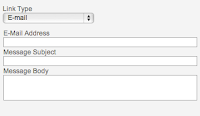
There are 3 Link Types URL, Link to anchor in the text and E-mail. Here are some of the
  • URL: Protocol http://. Where you enter the full address of the destination link eg. www.mailroom.co.nz.
  • URL: Protocol http://. Where you enter the full address of the destination link, when it a secure webpage eg. https://www.facebook.com/SpiralWeb
  • URL: Protocol ftp://. Where you are linking to an ftp site. Very rarely used.
  • URL: Protocol news://. Contact us if you need to use this.
  • URL: Protocol other. For all other links.
  • Link to anchor in the text. Where you link to a previously setup anchor on your page.
  • E-Mail. Where you can create an email pop-up

... and "Browse Server" which allows you to insert links to PDF files on the web server (you must upload them to make them available online)


Target Info
Target controls where the new document will be displayed when the user follows a link. Most of the time, clicking on a link simply loads a new document in the same window. With the Target attribute you can have the link open in a new window.Target has four predefined values:

* "_blank"
* "_parent"
* "_self"
* "_top"

Where you enter the name of the destination frame on a page with multiple frames.

Where you want a pop up window. 

New Window (_blank) when you want the link to open in a new browser window.
Topmost Window (_top) when you want the link to open in the topmost window of a set of frames and the page is to occupy the whole screen.
Same Window (_self) when you want the link to open in the existing window (this is also the default).
Parent Window (_parent) when you want the link to open in the parent frame of a set of frames.

Advanced Info
Take a look at this one - if you know what these terms mean then go ahead and use it otherwise you may want to read up on HTML before you attempt using this element.


Creating smart, meaningful links will help you get a higher Google listing and help people find your website.

Good luck with your links and remember you can call us in the office for a refresher on what to do.


Friday, March 16, 2012

What we've been up to so far this year ...

This is, of course, the quarter that often speeds by the fastest because it starts off with holidays in January. Apart from holidays the team have been busy on:
  • writing patient management software for a clinical trial running across NZ & Australia
  • developing and delivering software to speed up the stocktake process for businesses,  by using handheld barcode scanners
  • overhauling a clients website, adding new graphics and extra functionality
  • database work for both the NZ Registered Architects and the Rail Heritage Trust of NZ 
  • styling RSS feeds
  • learning more about the Facebook developers platform for an upcoming application we are writing
and Cain went to Webstock, an inspirational conference for web professionals - designers, developers, usability experts, content writers etc ... he's back at work, refreshed, inspired and ready to implement all the cool stuff he learned.

Monday, January 16, 2012

New Zealand Browser Stats 2011

Looks like Internet Explorer is not as popular as it once was in New Zealand, according to Statcounter Global Statistics. While holding its number 1 spot it has dropped below 40% of browser usage.  Google's Chrome browser has overtaken Firefox to becomes NZ's number 2 browser.


What does this mean for you?
If you are not already using Chrome it means, after you have done website updates, you need to look at your website in

  • Chrome
  • Internet Explorer
  • Firefox
because sometimes they will display your updates differently/unexpectedly.

Stats for mobile devices show the iPhone browser useage far exceeds any of the other mobile browsers.

Wednesday, November 30, 2011

Is your password on the hackers top 25 list?

The end of year lists have started! Splashdata have published the 25 worst passwords for 2011.  The list was compiled based on millions of stolen passwords posted online by hackers. Here it  is:

1. password
2. 123456
3. 12345678
4. qwerty
5. abc123
6. monkey
7. 1234567
8. letmein
9. trustno1
10. dragon
11. baseball
12. 111111
13. iloveyou
14. master
15. sunshine
16. ashley
17. bailey
18. passw0rd
19. shadow
20. 123123
21. 654321
22. superman
23. qazwsx
24. michael
25. football

Did you see yours? If your password is on the list you might want to change it.

Monday, November 28, 2011

Upgrade time

Back at work after a week in the south island so it was time to upgrade to iOS5 on my iPad. The little iPad was my "work" machine while I was away. Rather then a laptop I chose to take the smaller iPad with it's bluetooth keyboard - worked a treat. As I was relying on it there was no way I was going to upgrade to the new OS just before going away.
All up it took about 2 hours to do the downloads, perform the upgrade and connect to iCloud - sweet!

Wednesday, November 16, 2011

Where to post your status!


Confused by social media and not sure where to post your status. KISA sent me this handy flowchart to help you decide.


Tuesday, November 15, 2011

My old t-shirts remind me of websites

Its time to get out last summers t-shirts. The weather is warmer and more dependable.  I can categorise my old t-shirts as follows

  • quality t-shirts I want to keep
  • quality t-shirts that are already out of fashion
  • stretched saggy ones - poor quality
I'm always grateful when my quality t-shirts last a couple of summers. My biggest disappointment is when I love a t-shirt and it goes all saggy and baggy with just a few washes. Its not just the waste of money, its the waste of time - all that shopping time wasted!

Those t-shirts remind me of websites in that ...

  • when you commision a website that goes out of fashion next year, you are in for an upgrade earlier than you expected ... a waste of time and money.
  • your old, cheap website can quickly start to look like that saggy, baggy t-shirt which is not a good look for your organisation
  • your quality website will look good next year and the year after, it will be easy to update and you will wear it with pride
We strive to build quality websites and software for people. Looking back at last seasons websites I believe we achieved that goal, thanks to our customers for being open minded and make some tough decisions.


Monday, November 14, 2011

How people use websites and cloud software

This week we will be delivering a beta, or test version of the software we have developed to record patients (anonymously) who have agreed to participate in a double-blind medical trial.  We have already spent a considerable amount of time observing people using the website and using the results to improve the software.

One of the most significant lessons in all this "watching" is that people show us through their actions or behaviour, how they will use the website and often this differs to what they tell us they will do or want.

The research co-ordinators at Wellington ICU, who start using the software this week,  will be entering real data and giving feedback on the software. This is the 3rd stage of a simple process we use to find out how people actually use a website or piece of software. The 3 stages are:

Stage 1

During the first stage I gave a set of tasks to perform, on the website, to 3 people. Tasks like

  • log in to the website as a Research co-ordinator and invite other users within your site
  • randomise a patient and allocate a treatment pack to them
  • add 2 patients to the screening log
While my test subjects were performing the tasks I wrote notes on how they interacted with the website. We also videoed the session so we could go back and view the interaction. 

Stage 2

This stage was similar to stage 1 but this time we used people who would be using the software and had a background using medical trial software. Where stage 1 gave us information on how a person might interact with the software, stage 2 gave us information about how an informed user might interact with the software. An example of the difference is the people in stage 1 used the mouse to navigate the website and the forms, whereas the people in stage 2 used the mouse for navigation but used tabs for the forms.

Stage 3

In the 3rd stage the actual users of the software get a chance to "play" with it. The results of this stage are useful in familiarising the users with the software before they begin using it "for real" and they get to give us feedback. We use that feedback to correct any errors that may have slipped through our testing process and make subtle improvements to the website.

We use this information to make the website easier to use, make the software more efficient and to tell us if things are working the way the customer (or end user) is expecting them to work.

Aggregating Content

Our blog is undergoing a redesign ... not just the look but also the structure. In my mind structure/function and look must always go together, as to which comes first ... thats the topic of another post, not yet written.
It's getting:

  • a new name
  • new purpose
  • more people writing to it
Hope you like it and please, tell us how we are doing.

Tuesday, June 14, 2011

Facebook face recognition is on - heres how to turn it off

Facebook has been really sneaky and rolled out a fabulous (!) new feature that helps friends tag you in photographs. They've kept it pretty quiet but this is how it works.

When a someone posts a photo on Facebook, the photo recognition software tags friends in the photo with names that Facebook thinks match the faces. This is a great feature in iPhoto but creepy in Facebook. You can untag yourself in any photo but if you want to stop it happening at all you need to change your privacy settings.

How to disable automatic face recognition
You can disable the face recognition for your account by changing your privacy settings. Heres how:

  1. Go to "Account" ---> "Privacy Settings"
  2. Click on  "Customise Settings"
  3. Scroll down to "Suggest photos of me to friends"
  4. Click on "Edit Settings"
  5. Change "Enabled" to "disabled" and click on "Ok" to save

Hope this helps - email me or comment here on how you get on.

Tuesday, May 24, 2011

ICONZ Case Study

Just noticed this week that the case study ICONZ did on our hosting has been published. See http://www.iconz.net/casestudies

21 Social Media Terms

  1. Blog – A tool used by writers around the globe to connect with readers. The most popular blogging platforms include WordPress, Typepad and Blogger.
  2. Delicious – A free online bookmarking service. When someone tags an article, video or blog post with a Delicious bookmark, it’s the equivalent of getting a “vote.”
  3. Digg – Similar to Delicious in that people vote for articles, videos and blog posts. If your content gets enough Diggs, it’s promoted to the front page for millions of visitors to see.
  4. Facebook – A social network that connects people with friends, family and business associates. Facebook is the largest social network in the world with more than 500 million users.
  5. Flickr – A social network that allows users to store photos online and then share them with others through profiles, groups, sets and other methods.
  6. Foursquare — Foursquare is a mobile check-in service that allows people to get points every time they visit their favorite restaurant, bar, coffee shop or whatever. The more points you get, the more likely you’ll be the recipient of special offers from that establishment.
  7. HootSuite – HootSuite allows you to manage multiple social media profiles, pre-schedule tweets or posts and view metrics.
  8. Like – Instead of writing a comment for a message or a status update, a Facebook user can click the “Like” button as a quick way to show approval and share the message.
  9. LinkedIn – LinkedIn is a business-oriented social networking site that is mainly used for professional networking.
  10. Reddit – Reddit is similar to Digg and Delicious. It is a social news site that is built upon a community of users who share and comment on stories.
  11. Skype – A free program that allows for text, audio and video chats between users.
  12. StumbleUpon – A platform that’s similar to Digg, Delicious and Reddit. When you rate a website that you like using StumbleUpon, you automatically share it with like-minded people around the globe.
  13. Technorati – Real-time search for user-generated media (including blogs) by tag or keyword. Also provides popularity indexes.
  14. TweetDeck – An application that connects users with contacts across Twitter, Facebook, MySpace, LinkedIn and more.
  15. Tweetup – A Tweetup is an organized or impromptu gathering of people who use Twitter.
  16. Twitter – Twitter is a platform that allows users to share 140-character-long messages publicly. User can “follow” each other as a way of subscribing to each others’ messages. Additionally, users can use the @username command to direct a message towards another Twitter user.
  17. Twitter Search – Twitter Search is a search engine operated by Twitter to search for Twitter messages and users in real-time.
  18. Vimeo – Vimeo is a video sharing service in which users can upload videos to be hosted online and shared and watched by others.  
  19. Webinar – A webinar is a live video event such as a meeting, training, or presentation that takes place via the Internet.
  20. WordPress – WordPress is a content management system and contains blog publishing tools that allow users to host and publish blogs.
  21. YouTube – A video sharing service where people can upload videos to be hosted online.

Monday, May 23, 2011

Email list growth tactics - level of effectiveness

In March this year Marketing Sherpa published the results from a survey on the most effective email list growth tactics. This survey was conducted amongst 1,100 marketers, to gauge how important a variety of tactics were considered to be, from the point of view of their respective organizations. Here's what they found:
Getting people to sign up to your newsletter is about building trust and offering value - such as offering a download - not simply throwing up a form and hoping that people will stumble upon it.

Facebook just got better for non-profits

Establishing new relationships and growing supporters are huge undertakings for non-profits. Social media tools, such as Facebook, are becoming critical in ensuring non-profits efforts are successful. This month Facebook announced its launch of a new resource centre designed to support not-for-profit organisations. The page, "Non-Profits on Facebook" offers tutorials, open discussions and educational material to specifically help not-for-profits.

Some of the resources published and available through the Non-profits on Facebook page include:


The Guide for Non-profits includes set-up instructions in addition to best practices for using the network and connecting with online communities.


The new resource center already has more than 425,000 Likes.